NextGen User Guide
Reference guide for NextGen POS terminal screens, workflows, tip outs, item stock management, and daily review.
Overview
This article describes how to use the Genius's NextGen POS solution, running on NextGen payment terminals. It also describes how to perform various tasks and transactions with the NextGen POS after it is configured.
Using the POS (Basic Tasks)
The following sections describe the environment and features within the NextGen POS, as well as how to perform basic tasks and transactions, such as opening new tickets, ordering items, splitting tickets, and other actions.
Room Screen: Bar Service
When you log into the POS, it displays the Room screen. In this screen, you can select a room and then access, review, or add tickets in that room. When you first log in, the POS accesses the first room in the Rooms list by default and displays it and its tickets (if any are currently open).
Regardless of the type of room you are viewing, the Room screen always includes the following controls.
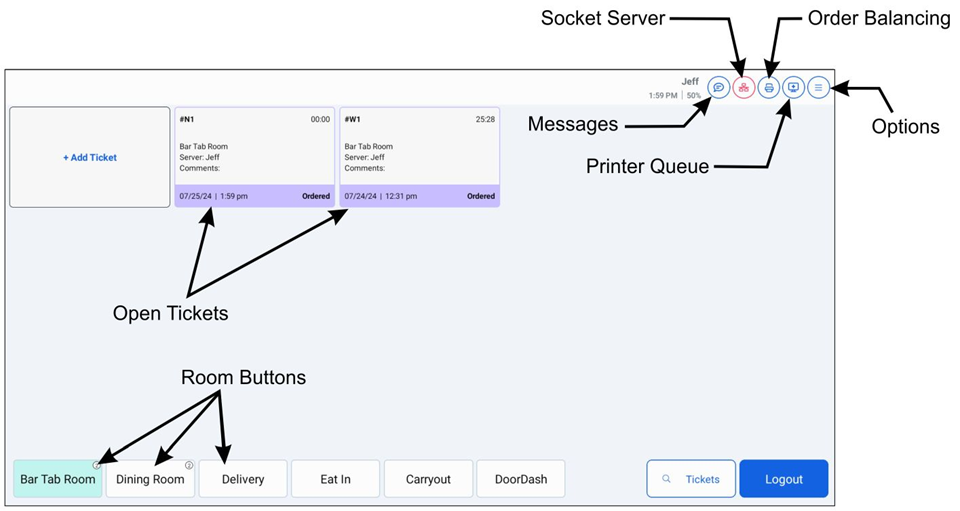
Messages: Accesses the Messages panel, which lists any messages you have received.
Socket Server: This icon displays the current connection status of the POS with the socket server.
Printer Queue: This button displays a panel that describes the printer's current status in detail.
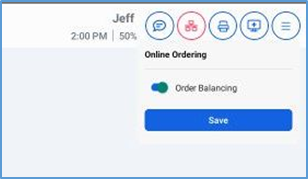
Order Balancing: If the location uses Online Ordering, this button opens the Online Ordering panel, which includes a switch for enabling the Order Balancing feature.
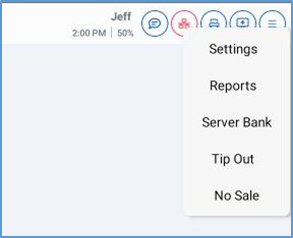
Options: If you tap this button, the POS displays the Options menu, which provides access to Manager Settings menu, Reports, Server Bank, Tip Out, and No Sale screens.
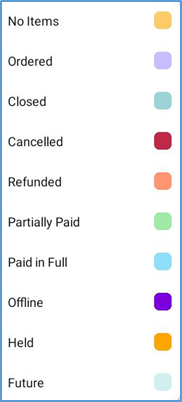
Regardless of the type of room you are viewing, the POS will always display the ticket tiles in the Room screen as highlighted by a color that indicates its current status:
When you log in, the Room screen displays the first room in the Rooms list by default, including all open tickets currently in that room. To access a different room, tap its button in the bottom panel.
Room Screen: Table Service
If you access a room that uses table layouts, the POS displays the room’s table layout, with icons representing its available tables. In this view, tables with open tickets display as highlighted.
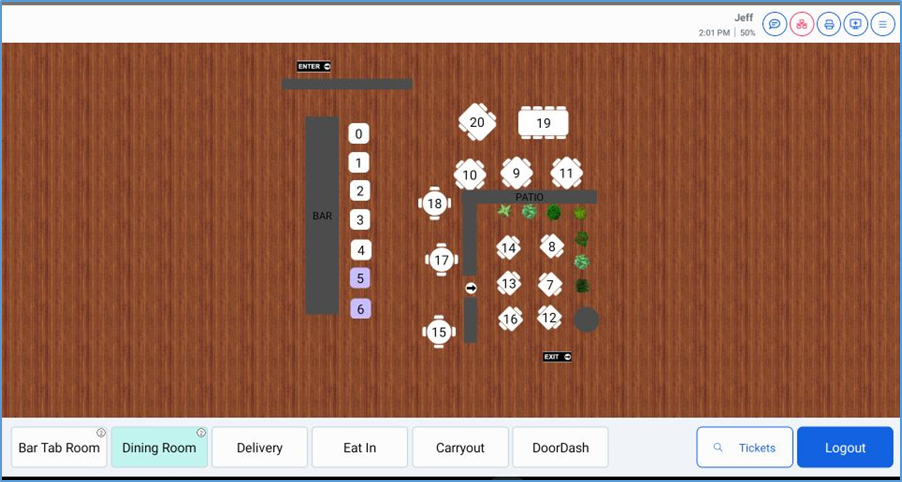
To open a ticket, tap the icon of an unoccupied table. The POS displays the Order screen, which you can use to add items to the ticket. This screen enables you to navigate and find items in different menu groups and sections.
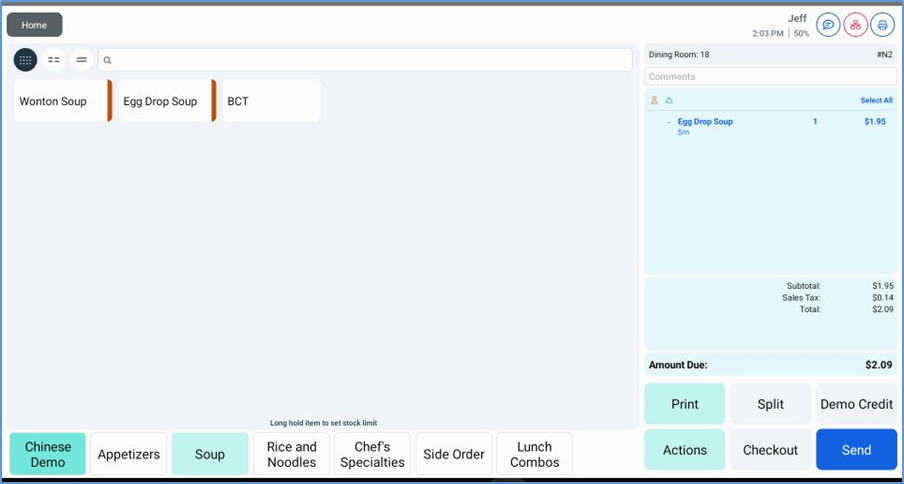
In the Order screen, you can access the items in a specific menu group by selecting that group in the Menu Group list, which you can access by tapping the Menu Group button (the left-most button in the bottom panel). The Menu Group button displays the name of the menu group currently selected as its label. In this example, the Menu Group button displays as Chinese Demo because it is currently accessing the “Chinese Demo” menu group.
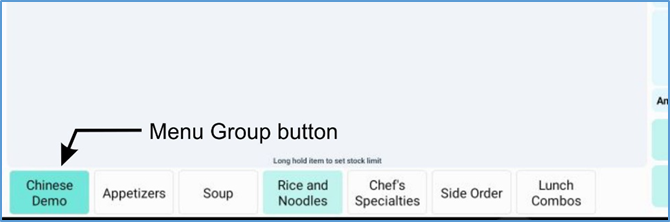
To select a different menu group, press the Menu Group button. The POS will display the Menu Group list.
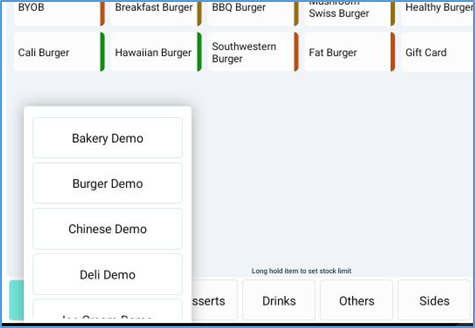
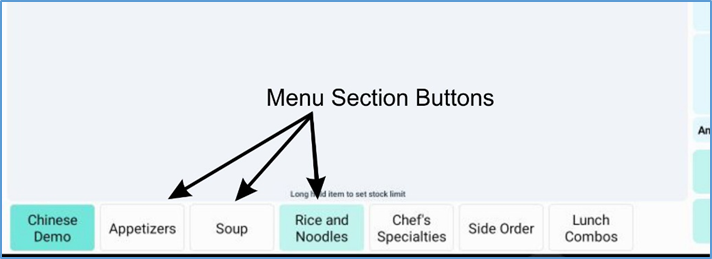
If you tap a menu group in this list, the POS will then display buttons in the bottom panel, each representing a menu section associated with that menu group.
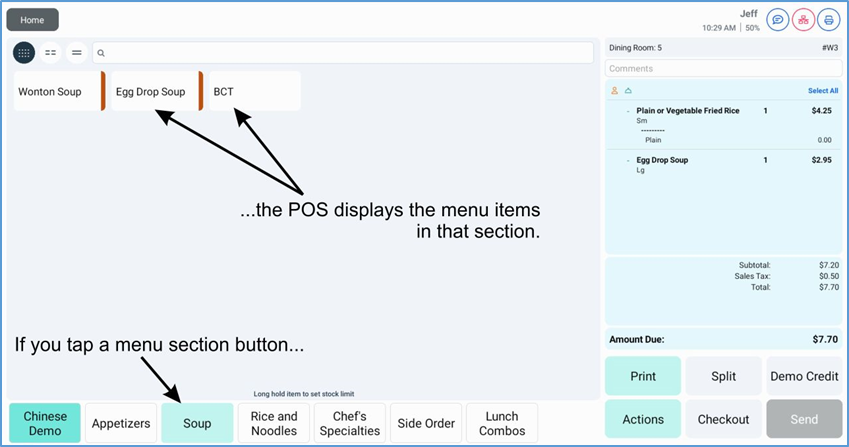
If you tap a menu section button, the POS displays the menu items associated with that section.
Ordering Menu Items in the Ticket Screen
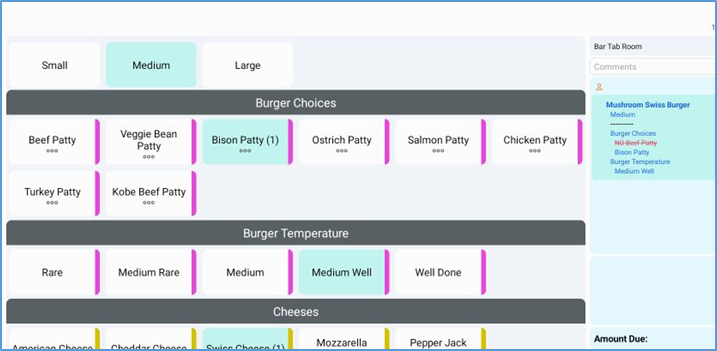
To add an item to a ticket, tap the item. If the item has no modifiers, the POS adds it to the ticket immediately. If the item does have modifiers, the POS displays its modifier options.
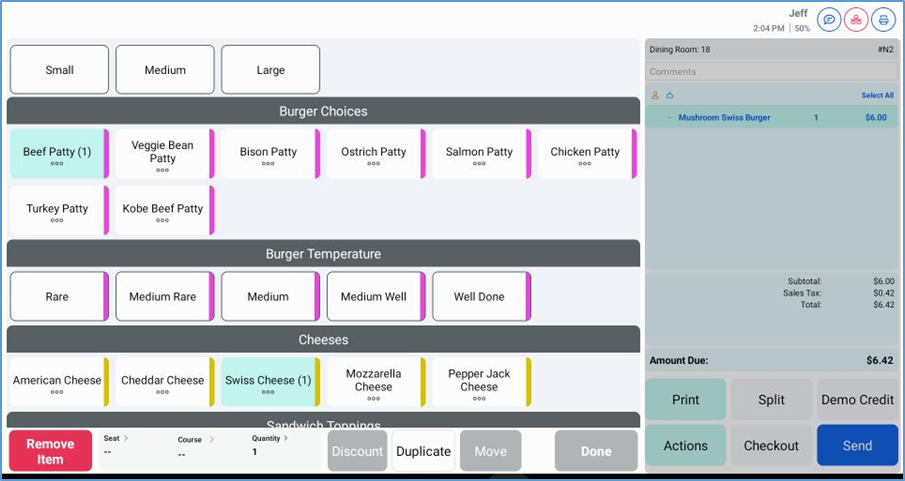
When you select a modifier, the POS highlights its selected button. As you select modifiers, the POS adds them to the ticket, displaying them in the Ticket panel on the right-hand side of the screen.
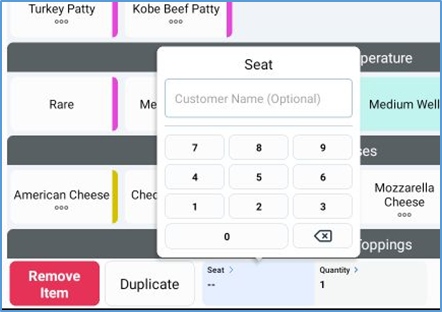
In the bottom panel, if you tap Seat, the POS displays a keypad, enabling you to enter a seat number for the item. If necessary, you can also enter a name for the customer in this seat by typing a name in the Customer Name box.
Also in the bottom panel, if you tap Quantity, the POS displays a keypad, enabling you to enter a new quantity for the item.
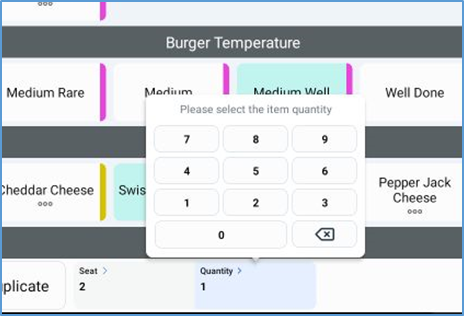
When you add the item to the ticket, the seat number and quantity will display with the item.
After you select all appropriate modifiers, tap Done to return to the Order screen. To remove the item from the ticket and return the Order screen, tap Remove Item.
Ticket Panel
In the Order screen, as you add or adjust the items on the ticket, the POS displays the ticket in a panel on the right-hand side of the screen, allowing you to review the full ticket at any time.
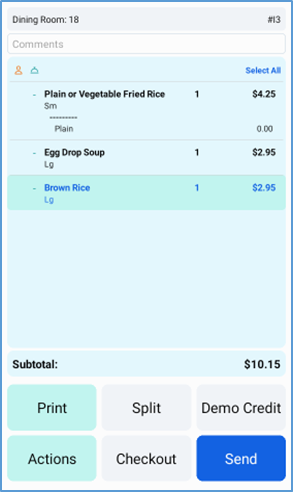
In this panel, the POS displays the ticket in detail, including its subtotal. Items that have been ordered but not yet sent to the kitchen printers in blue text. Items that have been sent to the printers display in black text.
Send
In this panel, if you tap Send, the POS will send all newly ordered items to the kitchen printers. In the Ticket screen, items that have been ordered but not sent to the prep printers display in blue text. After an item is sent to the printers, it displays in black text.
If you tap Print, the POS will print the ticket on the receipt printer.
Split
If you tap Split, the POS will display the Split Ticket screen, which allows you to split the ticket in various ways. The options available are Add Tab, By Seat, or Even Split.
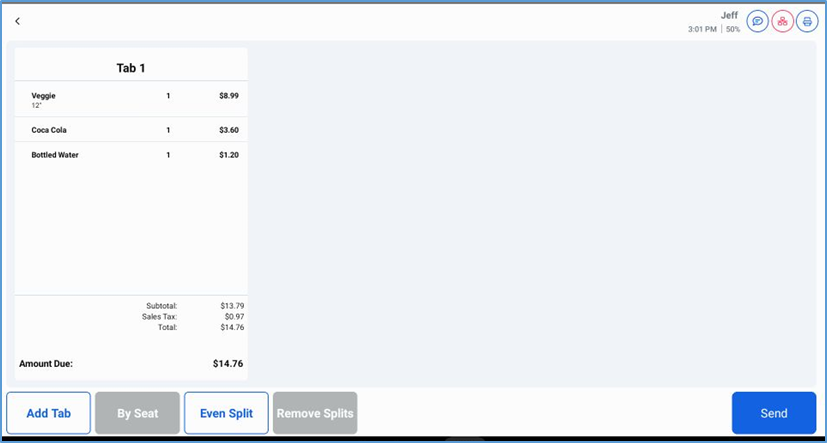
Add Tab
In the Split Order screen, if you tap Add Tab, the POS opens and displays a new empty tab in the ticket. You can add as many tabs as needed.
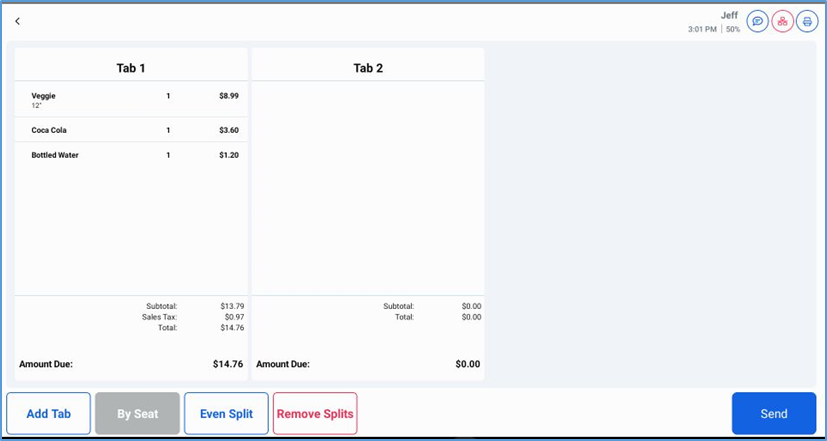
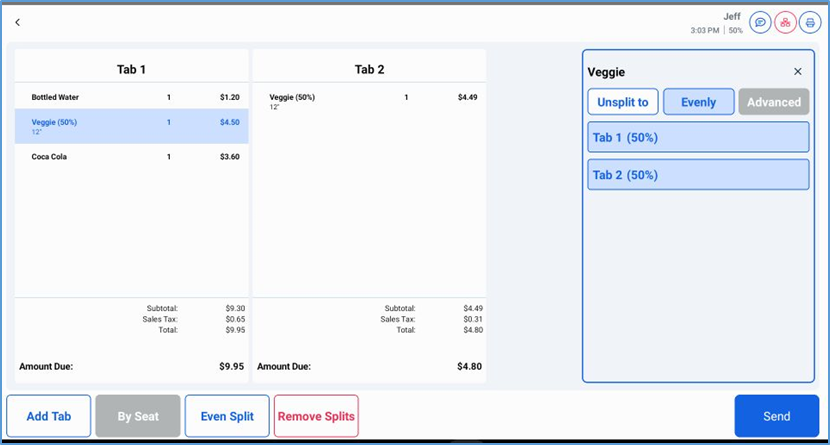
After adding a new tab, you can then move items from one tab to another. If you tap an item, the POS displays a panel with multiple split options: Move to, Evenly, and Advanced. The POS also displays a list of buttons, each representing a tab (Tab 1, Tab 2, and so on), with the item’s current tab highlighted.
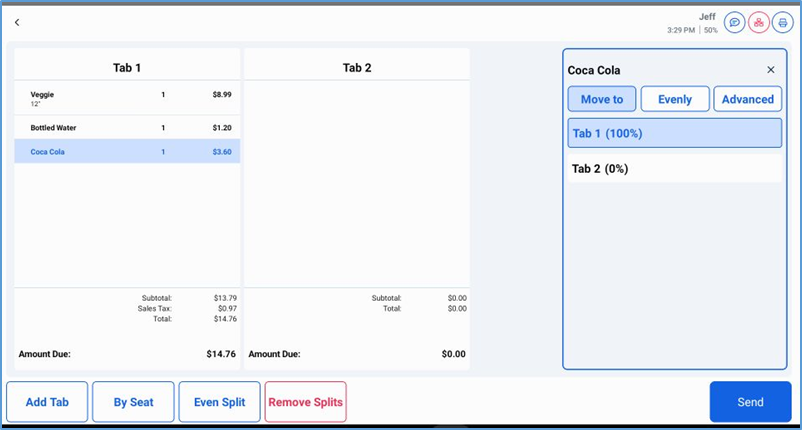
The Move to option enables you to move a whole item to a new tab. If you select Move to and then tap a tab button, the POS moves the item to the selected tab and displays the updated Ticket screen.
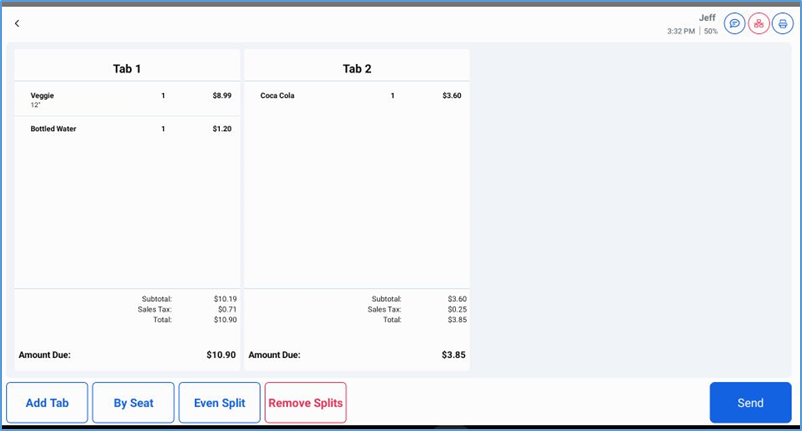
Instead of Move to, if you select Evenly and then select one or more tabs in the list, the POS splits the item (and its price) evenly between the selected tabs.
By Seat
In the Split Order screen, if you tap By Seat, the POS creates a dedicated tab for each seat number on the ticket, and then moves all items to the tabs that correspond with their seat numbers.
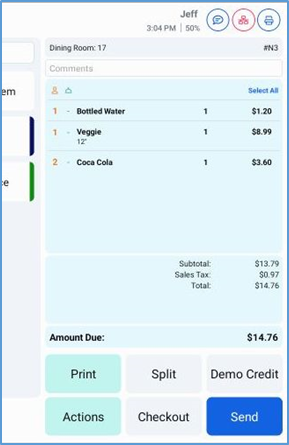
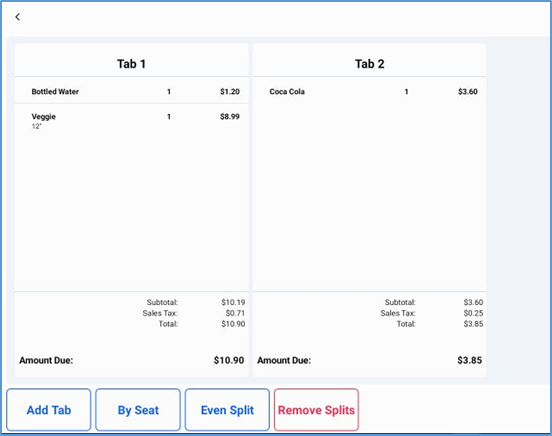
After you tap Send, the POS will display the Ticket screen, and the ticket panel now displays controls for accessing its separate tabs.
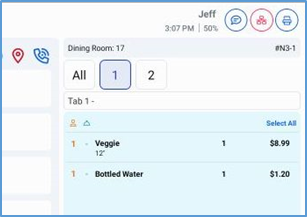
This split method only works if you assign seat numbers to the items in the ticket beforehand.
Even Split
In the Split Order screen, if you tap Even Split, the POS displays a list of split numbers, each representing the number of splits you want to create within the ticket (2 Ways, 3 Ways, 4 Ways, and so on).
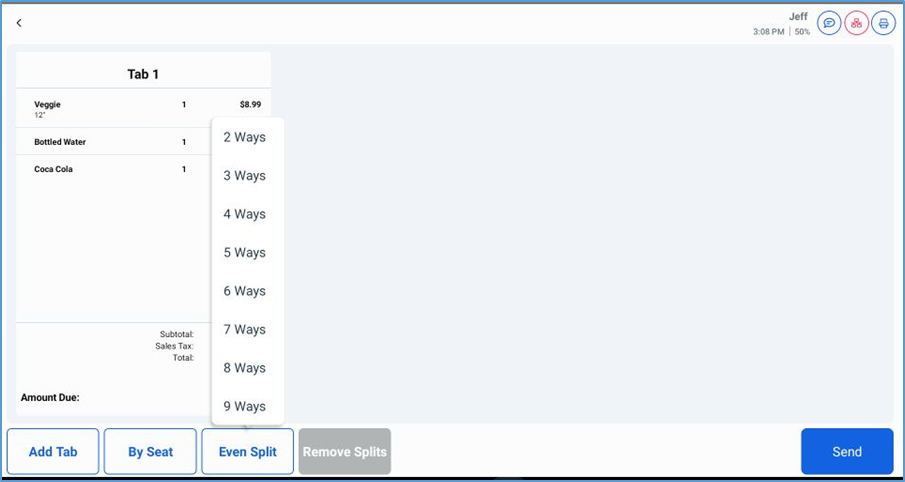
After selecting a split number, the POS adds new tabs equal to the number you selected, then splits every item in the ticket evenly between all tabs.
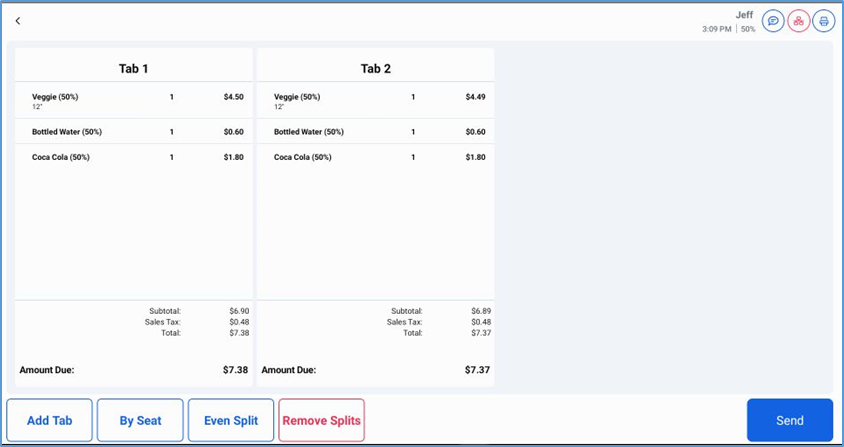
For instance, you may want to split a ticket between two customers. Using the Split action, if you select Split Evenly, then select 2 Ways, the POS would split the one existing tab into two tabs, then split every item on the ticket between the two tabs.
Removing a Split
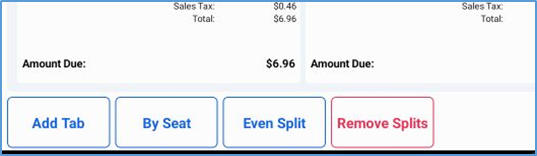
If, for whatever reason, you need to remove a split (of any kind) from a ticket, you may do so by accessing the ticket, tapping Action, then tapping Split again. In the Split Ticket screen, tap Remove Splits. The POS will remove all splits from the ticket and display the Ticket screen.
Checkout
If you tap Checkout, the POS will access the Payment screen. In this screen, you can select appropriate payment option to pay the check.
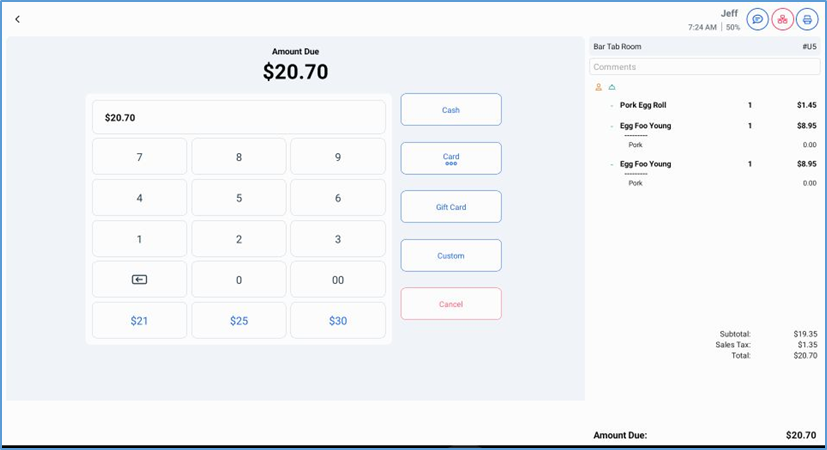
If the customer pays with a credit card, tap Card. If the customer pays with a gift card, tap Gift Card.
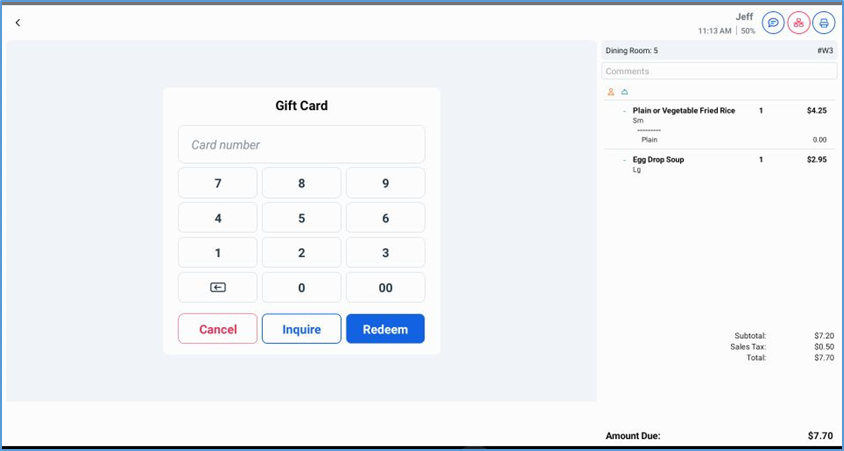
To pay the ticket with a custom tender, tap Custom.
If the customer pays with cash and gives the exact amount of the ticket, tap Cash. The POS will automatically pay the ticket with cash for its total amount.
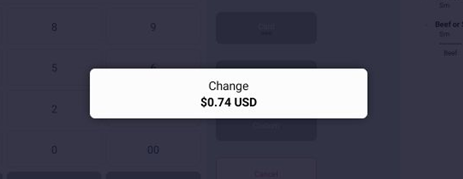
If the customer pays with cash and gives an amount greater than the ticket’s total, enter the tendered cash amount with the keypad, or tap one of the suggested tender amounts. The POS will pay the ticket with cash and then display the total change due.
Actions
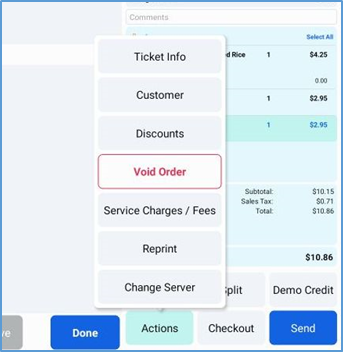
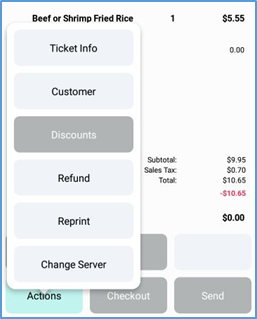
If you tap Actions, the POS will display a submenu with more options.
Ticket Info
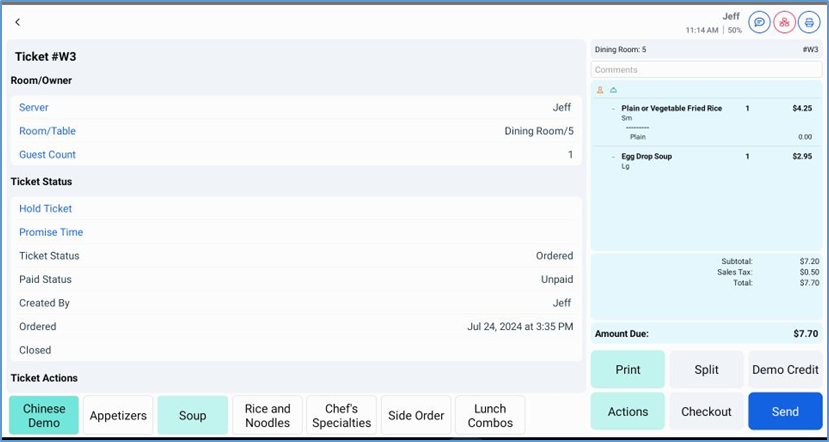
In the Actions submenu, if you tap Ticket Info, the POS displays the Ticket Info screen, which features a list of information about the ticket, such as its server, its room and table number, its hold status, its payment, and so on.
Customer
If you tap Customer, the POS opens the Customer Info screen. In this screen, you can enter, review, or revise a customer’s basic contact information, such as name, address, telephone numbers, and email address.
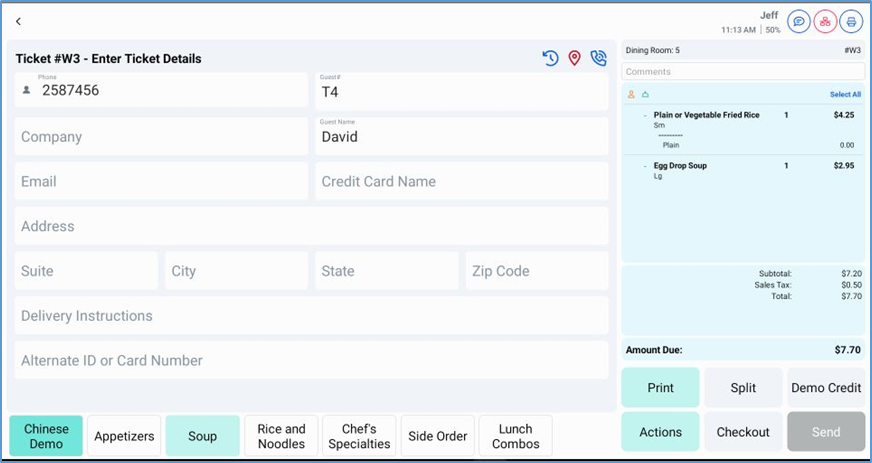
Discounts
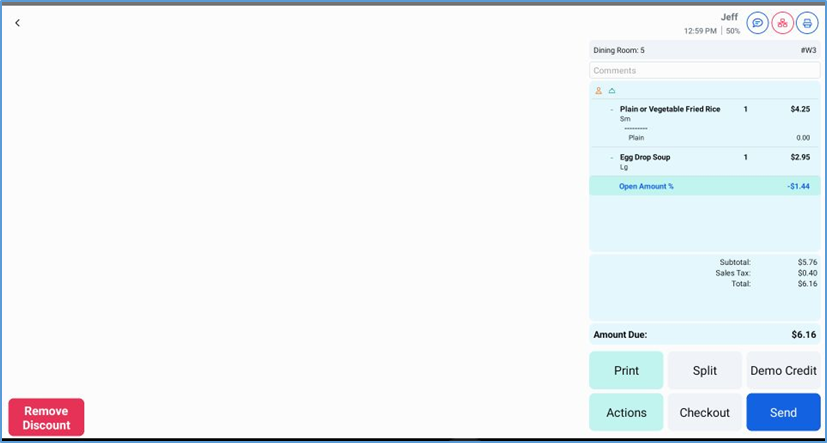
In the Actions submenu, if you tap Discounts, the POS will display the Discounts & Promotions screen, which lists all discounts and promotions that can be applied to the ticket.
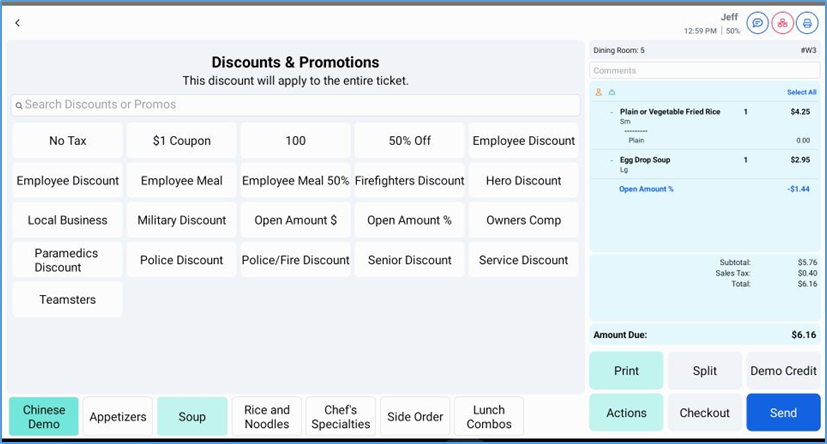
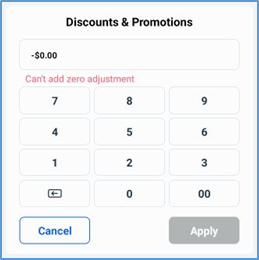
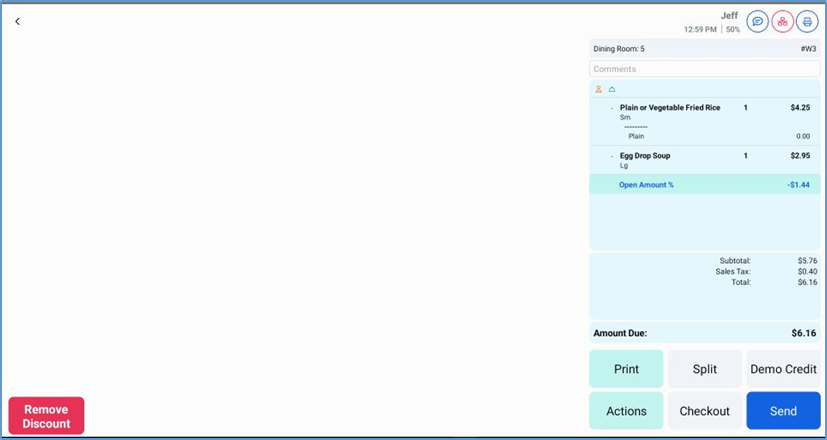
If you tap a discount option in the screen, the POS will add that discount to the ticket. If you tap a discount option with an open amount, the POS will display a keypad, enabling you to enter an amount for the discount. Tap Apply to add the discount to the ticket.
After you tap Apply, the POS displays the discount as a new item in the ticket display and adjusts the ticket’s totals appropriately.
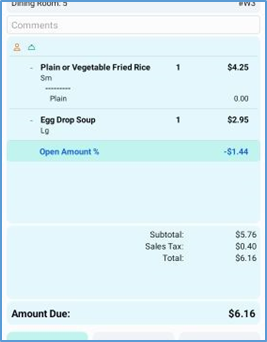
If you need to remove the discount from the ticket, tap the discount in the ticket panel, then tap Remove Discount.
Void Order
In the Actions submenu, if you tap Void Order, the POS will display the Reason for Void panel, which lists all predefined void reasons that can be applied to the ticket. You can also add a description of the void reason by entering the details in the Description box.
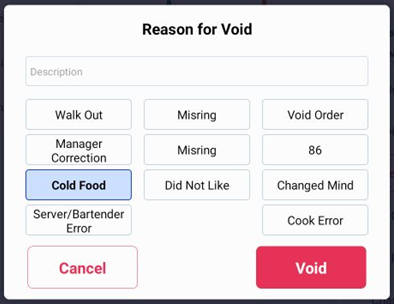
To void the whole ticket, tap an appropriate void reason, then tap Void. The POS will void the ticket and display the room’s ticket screen, with the ticket’s table icon now displaying as available.
Service Charges/Fees
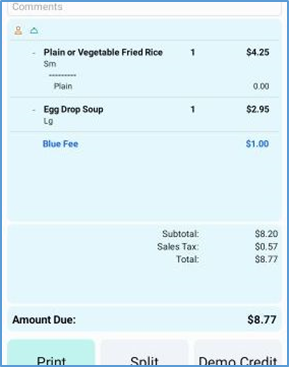
In the Actions submenu, if you tap Service Charges/Fees, the POS will display the Service Charges/Fees screen, which lists all charges that can be applied to the ticket.
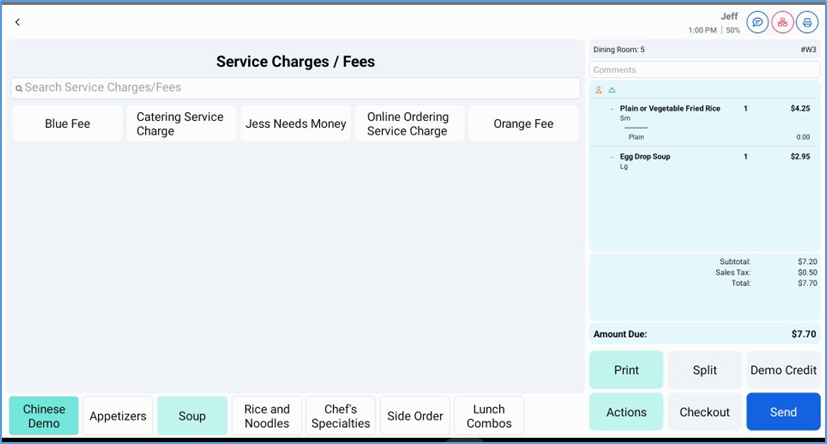
If you tap a charge option in the screen, the POS will add that charge to the ticket. If you tap a charge option with an open amount, the POS will display a keypad, enabling you to enter an amount for the charge. Tap Apply to add the charge to the ticket.
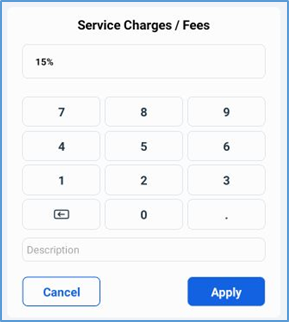
After you tap Apply, the POS displays the charge as a new item in the ticket display and adjusts the ticket’s totals appropriately.
If you need to remove the discount from the ticket, tap the discount in the ticket panel, then tap Remove Discount.
Reprint
The Reprint action enables you to reprint the ticket. In the Actions submenu, if you tap Reprint, the POS displays a screen listing buttons, each representing an available printer.
If you tap a printer button, the POS will send the ticket to the selected printer. If you press and hold a printer’s button, the POS will display the Preview option. If you then tap Preview, the POS displays a print preview of the ticket.
Change Server
The Change Server action accesses controls that enable you to assign the ticket to a different server. In the Actions submenu, if you tap Change Server, the POS displays the Change Server screen, featuring a list of buttons representing all servers that are currently clocked in.
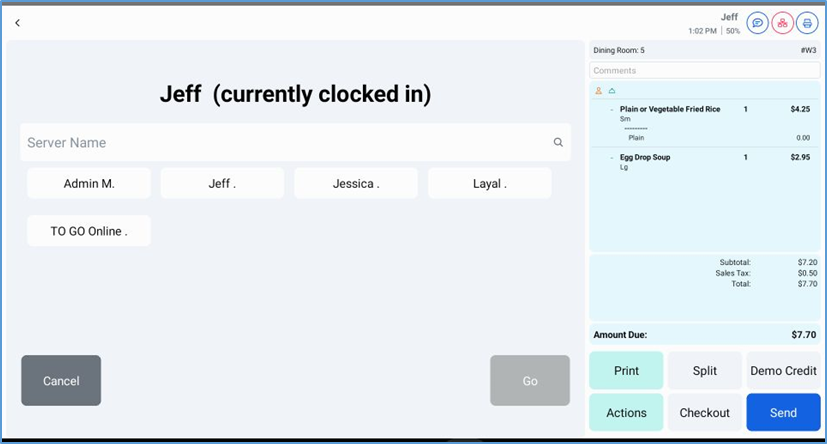
To assign the ticket to a new server, select an appropriate server’s button, then tap Go. If you do not see a button representing the server you want to select, type the server's name in the Server Name box. If that server is clocked in, the POS will display the server as an option. Select the server, then tap Go.
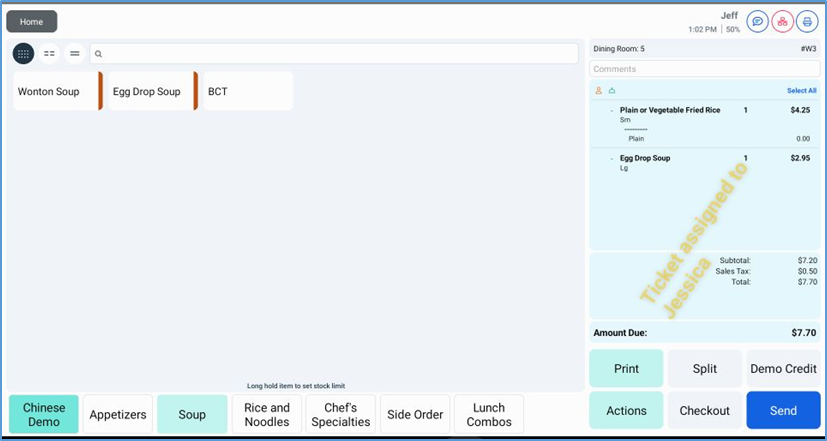
Afterwards, when you access this ticket, the POS will display banner text across the screen declaring that that ticket is assigned to the new server.
Refund
After you pay a ticket, the POS will include Refund as an action option. The Refund action enables you to refund the full amount of a ticket back to a customer, with various payment methods.
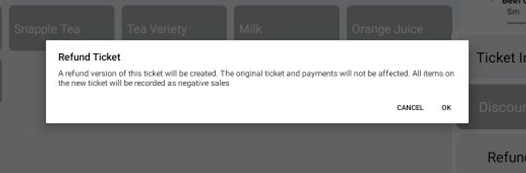
If you tap Refund, the POS displays a Refund Ticket prompt, describing how the POS will process the refund (by creating a refund version of the original ticket). Tap OK to continue.
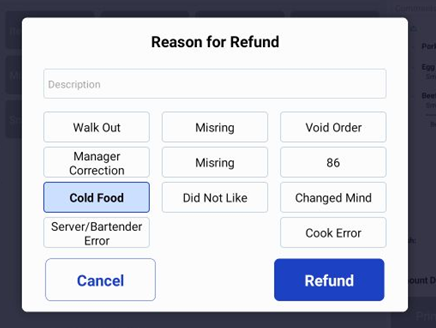
The POS then displays the Reason for Refund panel, allowing you to specify the reason for the refund. In this panel, select an existing reason option (if any are applicable), or type a more detailed reason in the Description box, then tap Refund.
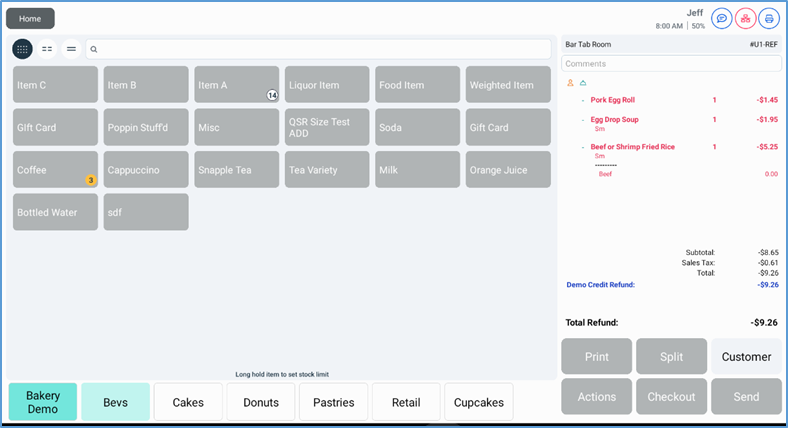
The POS will then display a screen displaying the total refund amount and a list of payment options.
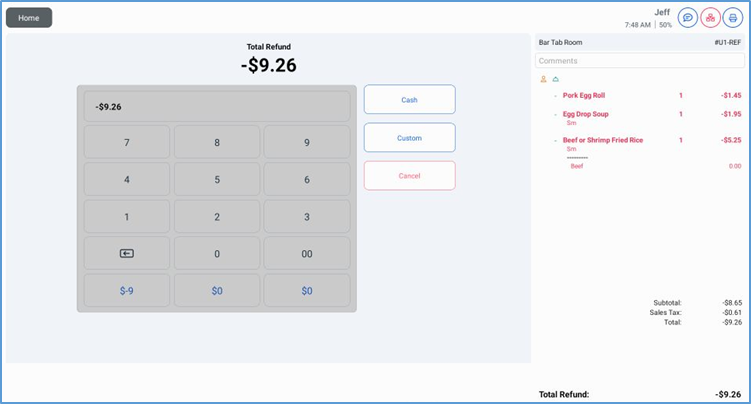
In this screen, you may select an appropriate payment type to use for the refund by tapping the button of an appropriate payment type, such as Cash, Card, Gift Card (if enabled for the location), or Custom.
If you tap Custom, the POS will display a panel listing the location’s custom tenders as payment options. If you tap Cancel, the POS will return to the Payment Options screen.
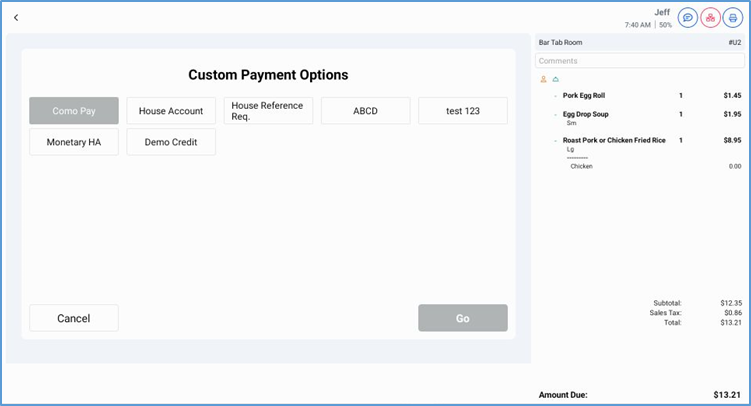
Once you select a payment type, the POS processes the refund with the selected payment type, then displays a screen verifying its approval.
If the transaction requires a customer’s signature, you can tap Sign to access the signature panel, allowing the customer to add a signature. If you tap Print, the POS will prompt you to either preview the ticket or send it to a receipt printer. If the refund’s payment type supports the option, you can select Void Payment to void the payment.
If you access the ticket after performing a refund, the POS will display the ticket’s items with red text. In the Room screen, the POS will also display the ticket’s tile highlighted in red.
Ticket Search
In the Room screen, if you tap Tickets, the POS will access the Ticket Search screen, which features various controls to enable you to search for a ticket, regardless of its status. This screen lists all tickets as selectable tiles, each displaying the ticket’s number, room, server, comments (if any), and the ticket’s status.
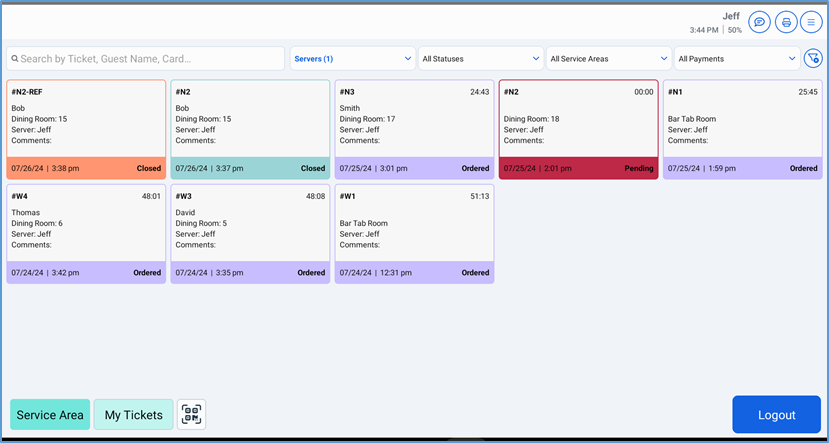
In the bottom panel, if you tap Service Area, the POS filters the list to only display tickets associated with the room. If you tap My Tickets, the POS filters the list to only display tickets associated with the server currently accessing the screen.
The top panel features controls that enable you to filter the list of tickets by one or more servers, ticket statuses, service areas, or payment types.
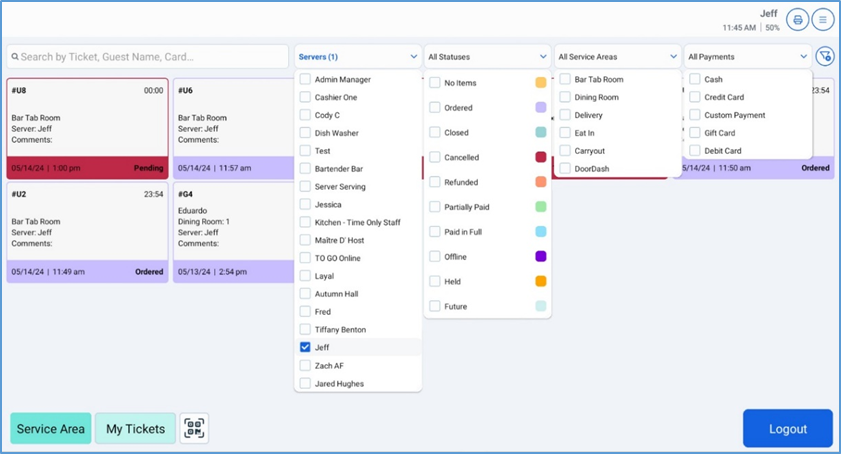
To search for a specific ticket, enter a ticket number, customer name, or card number in the Search box.
To apply a filter to the ticket list, tap one of the search lists (Servers, Statuses, Service Areas, or Payments) and select the desired criteria. To clear all current filters, tap the Clear Filters button.

Settings
The Settings option access the Manager Settings menu.
Reports
The Reports option accesses the Reports screen, which provides access to numerous reports on the status of various aspects of the business during the day. In the POS Room screen, tap the Options button, then tap Reports. The POS displays the Reports screen, which features a Reports menu along its left side.
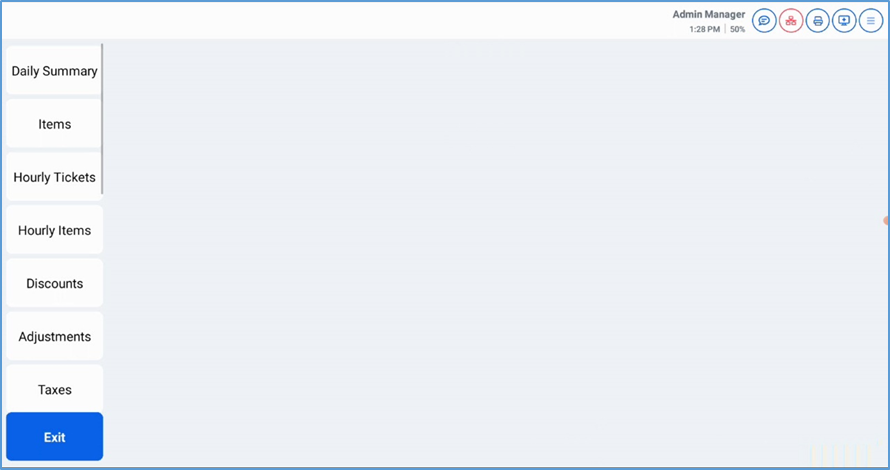
Each button in the Reports menu access a specific report. For instance, if you tap the Daily Summary, the POS will display the Daily Summary Report.
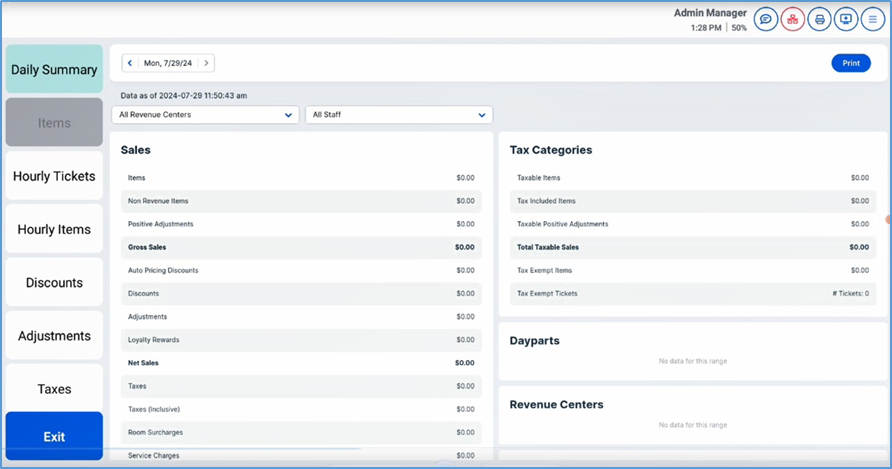
To return to the POS Rooms screen, tap Exit.
Server Bank
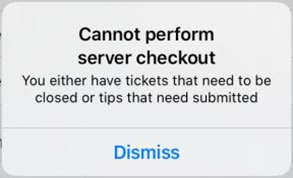
The Server Bank option accesses the Server Bank screen, which enables staff members to check out server banks. The POS will not allow you to check out a server bank until all of its tickets are closed by their associated servers. To complete a server checkout, each server should reconcile and close their tickets in the Server Bank screen.
In the POS Room screen, tap the Options button, then tap Server Bank. The POS displays the Server Bank screen.
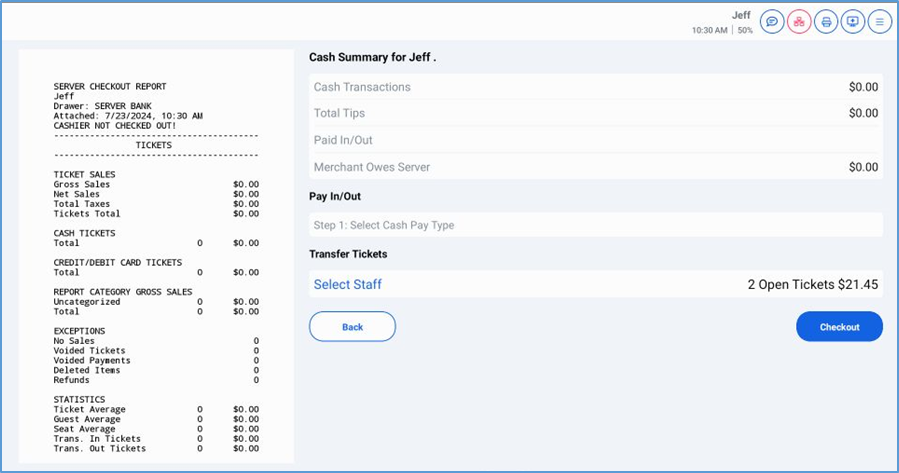
Within this screen, the POS displays the Server Checkout Report in the left-hand panel.
The Cash Summary section lists totals for cash transactions, tips, paid in/paid out transactions, and any funds the merchant may still owe the server.
The Pay In/Out section enables you to perform a pay in or pay out. In this section, if you tap Step 1, the POS prompts you to select cash pay type.
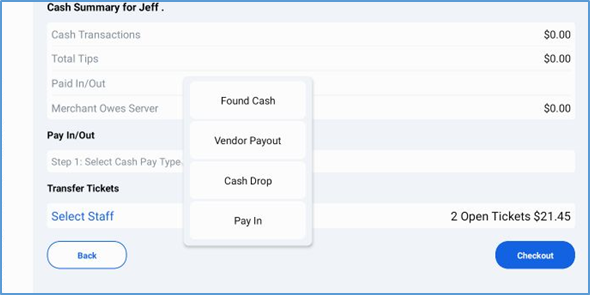
If you select a pay type, the POS then prompts you to enter the amount of the payment. If needed, you can also tap Comments and add any comments to the transaction.
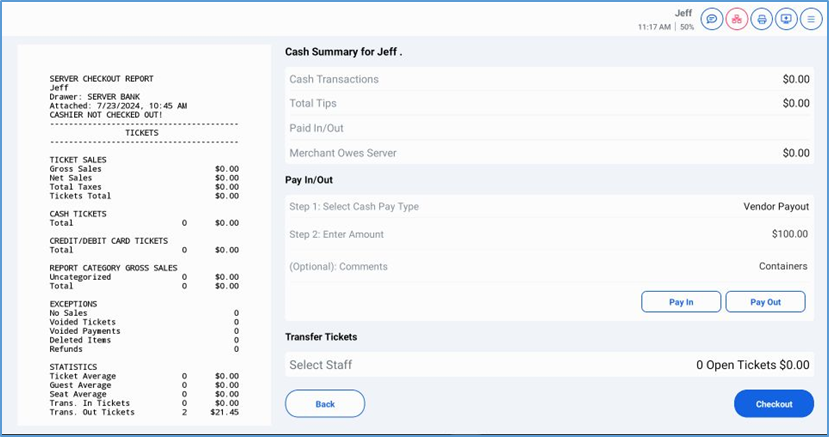
After entering the necessary settings, if you want to perform a “pay in” transaction, tap Pay In. If you want to perform a “pay out” transaction, tap Pay Out.
In the Transfer Tickets section, the server can transfer any remaining open tickets to another staff member. If you tap Select Staff, the POS displays a panel listing available staff members.
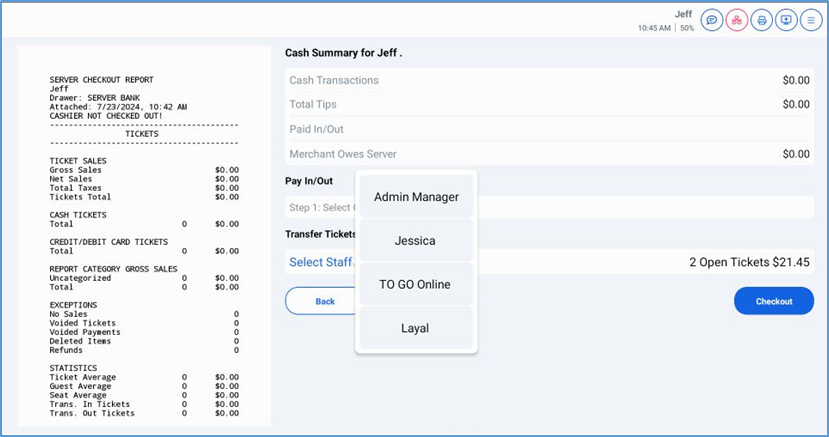
If you tap a staff member’s button, the POS will prompt you to verify the selection. At the prompt, if you tap OK, the POS will transfer all open tickets to that staff member.
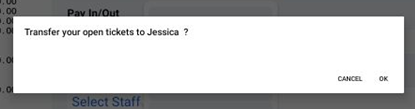
Once all tickets are closed, the server can tap Checkout. The POS displays a prompt to verify the checkout.
After completing the checkout, the server should return any amount listed as Server Owes Merchant to the restaurant. Conversely, if the Server Owes Merchant amount is negative, the restaurant should return that amount back to the server.
Once a checkout is completed, the manager can review its details in the Daily Review screen.
Tip Outs
The Tip Out option accesses the Tip Out screen, which enables you to allocate a percentage of a server’s net sales, gross sales, and tips to another staff member or to a group “tip pool”. Depending on how your site is configured, the POS might automatically allocate such funds into a tip pool that is available for redistribution in the POS. In other sites, staff may need to allocate their funds manually into a group pool or directly to another staff member.
Tipping Out to Another Staff Member
These procedures describe how to perform a tip out to a specific staff member.
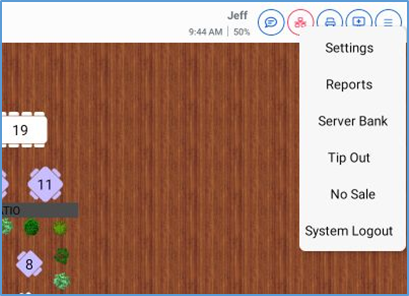
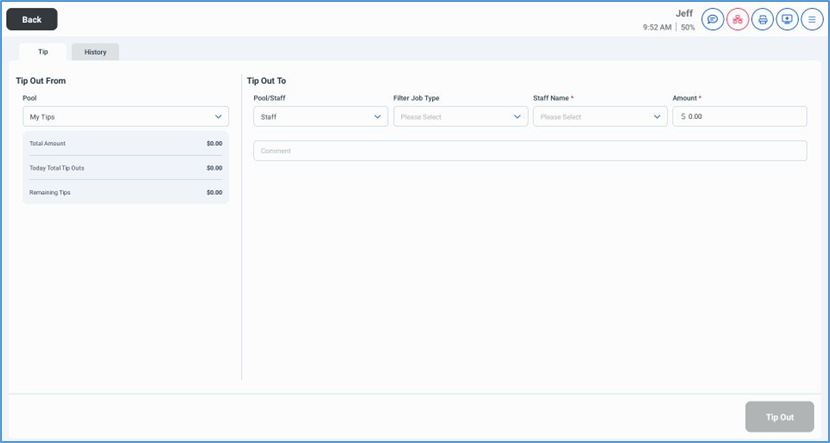
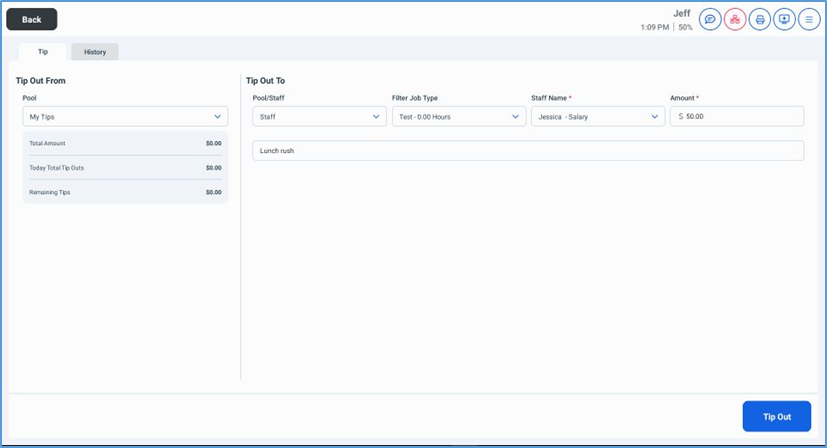

- In the POS Room screen, tap the Options button, then tap Tip Out.The POS displays the Tip Out screen.
- On the Tip tab, in the Tip Out From area, in the Pool list, select the tip pool from which you want to move funds.The Pool list’s default selection is My Tips, which is the current total tips of the staff member performing the tip out.When you select a tip pool, the POS displays that tip pool's total amount, total tip outs for the current day, and its remaining tips.
- In the Tip Out To area, in the Pool/Staff list, select Staff.
- In the Filter Job Type list, select the job type of the staff member receiving the tip out.When you select a job type in this list, the POS filters the Staff Name list to only include staff members associated with a selected job type.
- In the Staff Name list, select the name of the staff member who will receive the tip out.
- In the Amount box, type the dollar amount of the tip out.
- If necessary, you may enter a descriptive comment in the Comment box.
- Tap Tip Out.The POS will prompt you to verify the transaction.
- Tap OK.
The POS transfers the entered amount from your tips to the staff member’s tips.
Tipping Out to a Group Pool
These procedures describe how to perform a tip out to a specific tip pool.
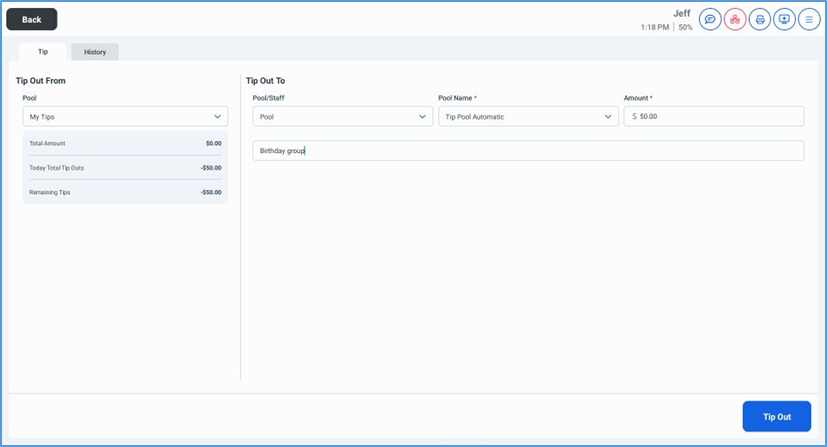

- In the POS Room screen, tap the Options button, then tap Tip Out.The POS displays the Tip Out screen.
- On the Tip tab, in the Tip Out From area, in the Pool list, select the tip pool from which you want to move funds.When you select a tip pool, the POS displays that tip pool's total amount, total tip outs for the current day, and its remaining tips.
- In the Tip Out To area, in the Pool/Staff list, select Pool.
- In the Pool Name list, select the name of the tip pool that will receive the tip out.
- In the Amount box, type the dollar amount of the tip out.
- If necessary, you may enter a descriptive comment in the Comment box.
- Tap Tip Out.The POS will prompt you to verify the transaction.
- Tap OK.
The POS transfers the entered amount from your tips to the selected tip pool.
Reviewing Tip Out History
When necessary, you can review the history of past tip out transactions in the Tip Outs screen. In the Tip Out screen, tap the History tab.
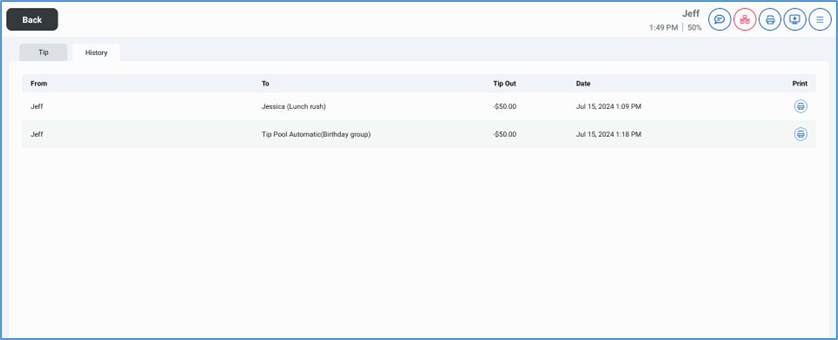
The History tab displays a report listing past tip out transactions, including the source of each step out, the recipient of each tip out, the amount of each tip out, and the date and time that each devout was performed.
Each transaction listed in the report includes a Print button. If you tap a transaction’s Print button, the POS will prompt you to select a printer, then print the details of that tip out.
No Sale
If your POS is associated with a cash drawer, you can use the No Sale option to perform a “No Sale” transaction to open the drawer. In the POS Rooms screen, tap the Options button in the top right corner, then tap No Sale.
The POS will only perform this task if you are in a job type with access to the cash drawer and set with the “No Sale” permission enabled.
Manager Settings Menu
To access the Manager Settings menu, tap the Options button () in the POS Rooms screen, then tap Settings. The Manager Settings menu includes the following screens:

- Info
- General
- Printers
- Payment Terminals
- Item Stock Management
- Tablets
- Time Punch Management
- Logs
- Daily Review
- System Logout
Info Screen
The Info screen displays a list of information about the POS running on this device.
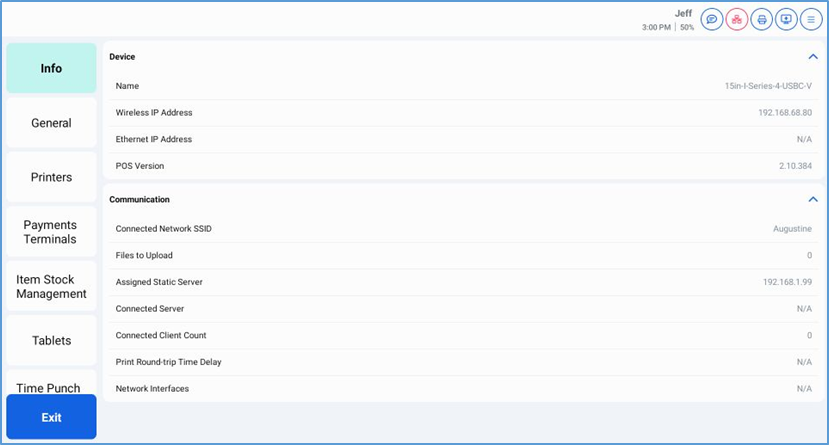
The Info screen is divided into the following sections, each listing different types of information:
Device: Technical information about the POS device itself, such as its name, IP addresses, and the POS app’s version number.
Communication: The device’s communication settings, such as its network SSID, connected servers and client counts (if any), and network interfaces.
General Screen
The General screen includes a list of controls that enable the manager to enable, disable, or modify various functions within the POS.
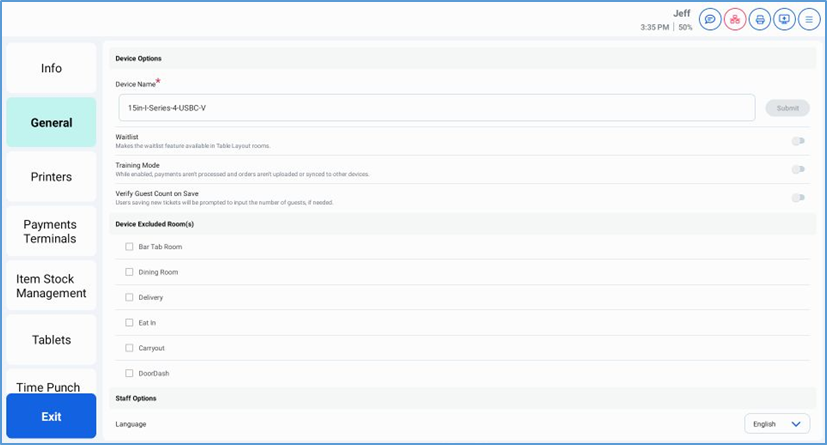
Device Options
Device Name: The name of the NextGen device.
Waitlist: If you enable this switch, the POS will make the wait list accessible and visible in Table Layout screens.
Training Mode: If you enable this switch, the POS will run the POS in “training mode.” While running in training mode, the POS will not process any payments performed on it or synchronize its orders with other devices. Training mode enables staff in training to open tickets or perform payments without generating actual data in the location’s system files.
Verify Guest Count on Save: If you enable this switch, the POS will prompt servers to enter the number of guests on the ticket (if they have not already done so) when they save a new ticket.
Device Excluded Room(s)
The Device Excluded Room(s) section includes a list of the location’s rooms. If you select one or more of the rooms in this list, the POS will not allow staff members to access them or associate new tickets with them or their tables.
Staff Options
The Staff Options section includes only the Language control, which enables you to select which language the POS uses when displaying its labels and text.
Tab Room Ticket Sort
The Tab Room Ticket Sort section includes a list of options that enable you to set how the POS sorts tickets in the Ticket screens for tab rooms. You can set the POS to sort tickets by one of the following methods:
- Newest Tickets First (based on the time they were created)
- Oldest Tickets First (based on the time they were created)
- Alphabetical by Guest Name
Auto Logout
The Auto Logout section includes a list of logout duration options. If you select a time option in this list, the POS will automatically log out if it is idle for the selected duration of time. You can select one of the following durations:
- 30 seconds
- 1 Minute
- 2 Minutes
- 5 Minutes
- 10 Minutes
- 1 Hour
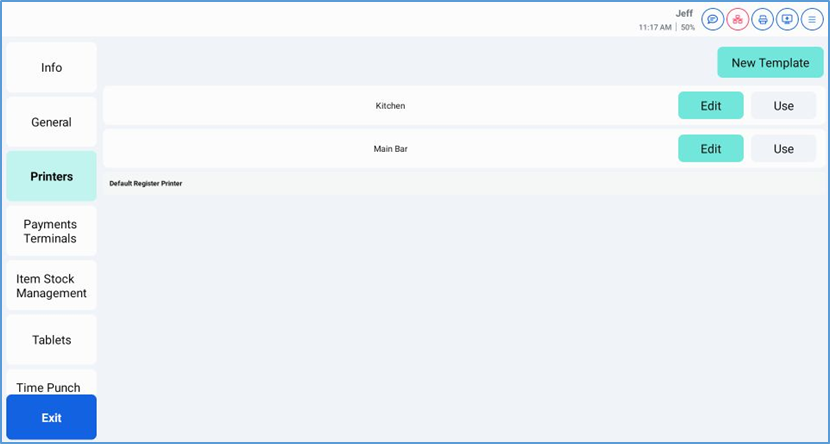
Printers Screen
The Printers screen, which enables you to configure the POS on each NextGen device to use a specific default register printer. The POS requires a default register printer in order to print guest checks or use an attached cash drawer.
Payment Terminals Screen
The Payment Terminals screen enables you to set up payment terminal (such as a Verifone card reader device) to each NextGen POS station. The Payment Terminals screen displays a list of tiles, each representing a payment terminal on the location’s network. Terminals available to your current device display in light green.
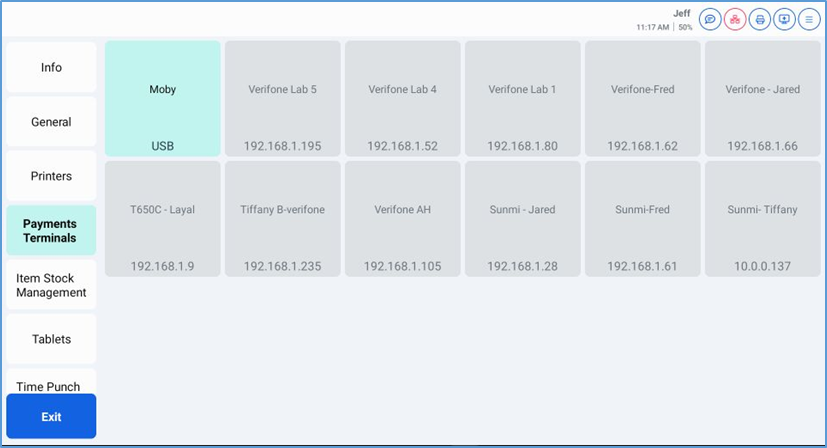
To associate the POS with a payment terminal, tap the tile of an appropriate and available device. The POS will attempt to connect to the selected device.
You can verify the connection at any time by tapping the Card Reader icon in the POS Rooms screen. The POS will display a panel listing the statuses of all its card readers. If the POS connected successfully, the list will display its status as CONNECTED.
Item Stock Management Screen
The Item Stock Management screen enables you to edit the stock counts of multiple menu items from within a single screen. It includes controls that enable you to search for items by category or menu section, enabling you to find and edit stock counts for multiple items.
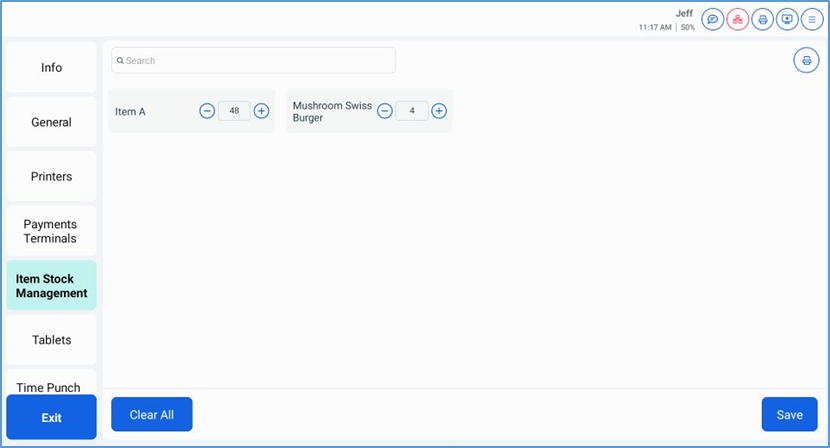
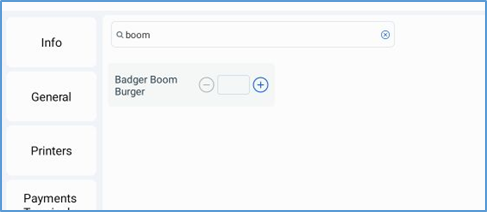
To edit an item’s stock count, you must first find the item and add it to the screen. Enter part of the item’s description in the Search box. If the POS finds one or more matching items, it will display them as tiles in the screen.
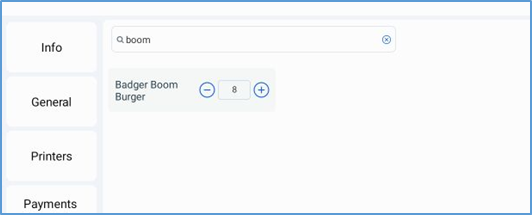
After finding the appropriate item, you can enter a new count directly in the item’s Count box, or modify the existing count by tapping the + and – buttons.
After editing the stock counts of all necessary items, tap Save the save the new counts. Tap Clear All to clear all current item tiles from the screen.
To designate an item as out of stock, set the item’s stock value to “0”. In the Order screen, the POS will display out-of-stock items in red. If you set an item’s stock value to “0”, servers and customers will be unable to order the item in the POS or the Online Order website.
Tablets Screen
The Tablets screen enables you to add or edit the POS’s ticket prefix. A ticket prefix is a string of characters, up to four characters long, that the POS adds as a prefix to new ticket numbers. For instance, if you enter the letter “A” as a ticket prefix, the POS will add it as the first character of the ticket numbers it generates for new tickets created on its device (such as “A12”, “A13”, “A14”, and so on).
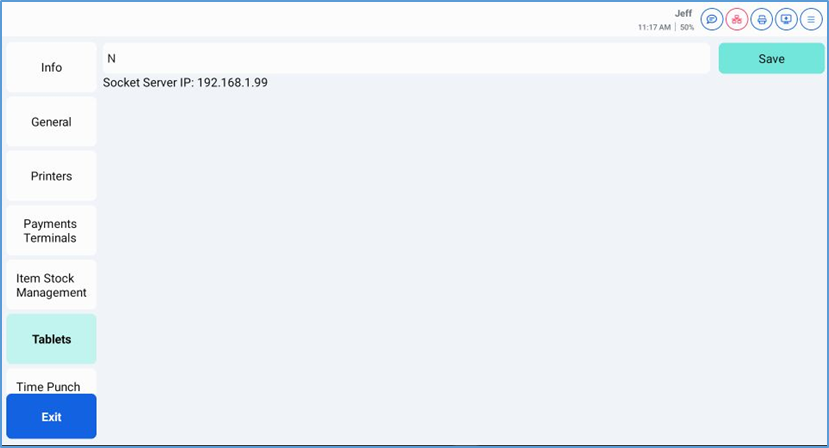
In the Tablets screen, you can set or edit the ticket prefix by entering a string of one to four alphanumeric characters in the Ticket Prefix box, then tap Save.
If you use ticket prefixes, you must use a unique prefix for each POS device. We recommend using alphabetical characters, to better differentiate the prefix from the numerical ticket number.
Time Punch Management Screen
The Time Punch Management screen enables you to edit or delete time punches, which are records of when a staff member clocks in or clocks out of the POS.
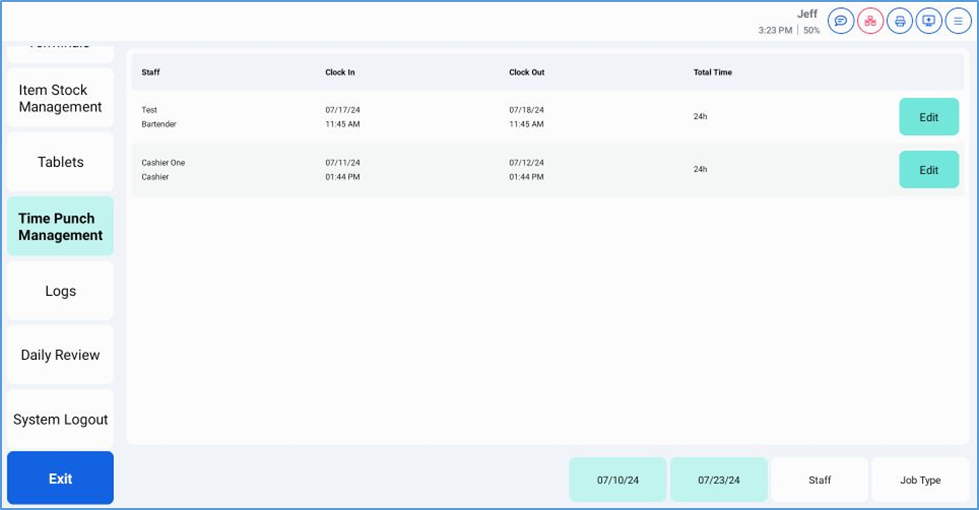
The Time Punch Management screen’s bottom panel features several search options to enable you to find a time punch to edit.
The two green buttons are Date Range settings, which you can use to set a date range. If you tap the Start Date Range button (on the left), the POS displays a date selection control, allowing you to select an appropriate start date. If you tap the End Date Range button (on the right), the POS displays another date selection control, allowing you to select an appropriate end date.
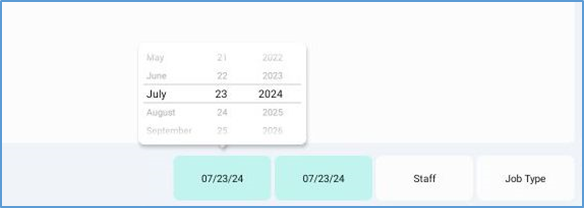
After you select a start date and end date, the POS will display all time punches performed within that date range.
In the bottom panel, if you tap Staff, the POS displays a list of staff members who have time punches performed within the designated date range. If you select a staff member, the POS will display all time punches for that staff member.
In the bottom panel, if you tap Job Type, the POS displays a list of job types. If you select a job type, the POS will display all time punches for staff members working in the selected job type.
Once you find the desired time punch, you can edit the record by tapping its Edit button. The POS will highlight its Staff, Clock In, and Clock Out settings.
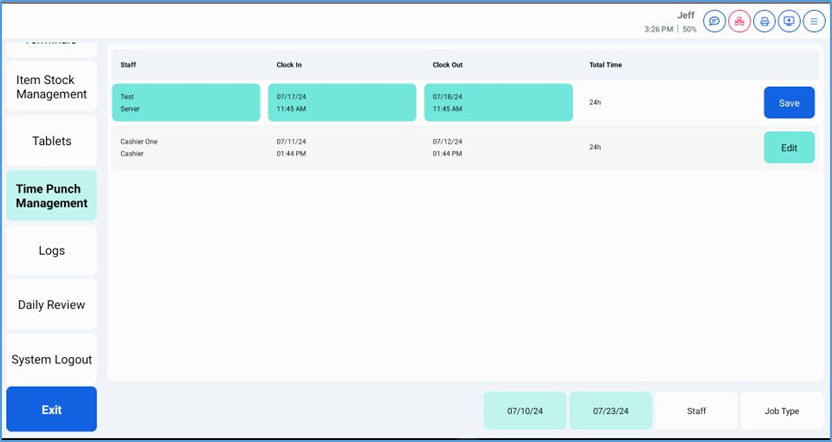
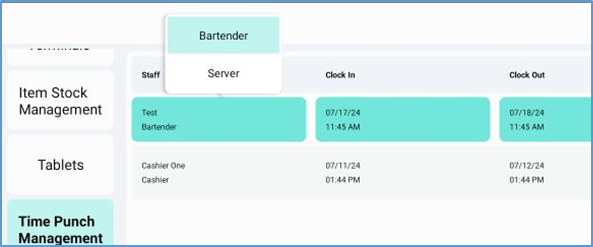
If you tap the time punch’s Staff tile, the POS displays a list of all of the staff member’s associated job types. If you tap one of these job types, the POS will edit the time punch’s current job type to the one you select.
If you tap the time punch’s Clock In or Clock Out tile, the POS displays a date and time selection control, allowing you to set a new date or time of day for the record’s clock in or clock out setting.
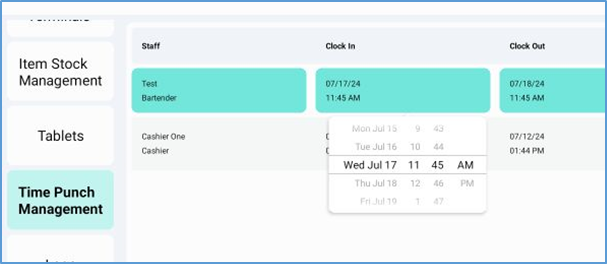
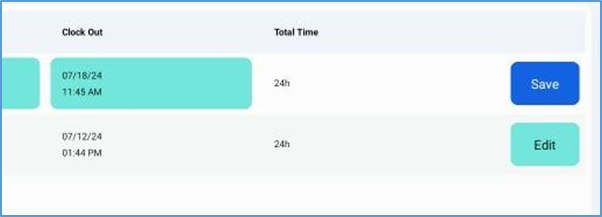
Once you have made the necessary edit to the time punch, tap its Save button to save the new settings.
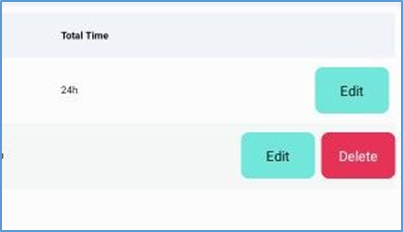
To delete a time punch, swipe left to reveal its Delete button, then tap Delete.
Daily Review Screen
The Daily Review screen enables managers to quickly review what transactions are left to be resolved during end-of-day procedures. To access the POS Daily Review screen, tap the Options button, then tap Settings. In the Settings menu, tap Daily Review.
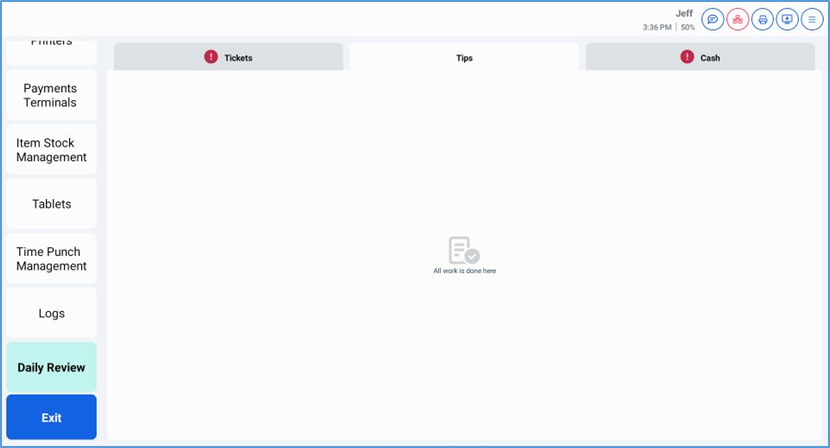
The POS displays the Daily Review screen, which includes three tabs: Tips, Tickets, and Cash. Each tab displays a list of transactions performed during the current day. These tabs enable you to review all of the day’s tips, tickets, and cash transactions and, if necessary, edit them before ending the day.
If there are any unresolved transactions in any of these sets, its tab will display a red “!”, enabling you to see at a glance if there are any transactions in any set that need action.

Tickets Tab
The Tickets tab displays a list of all tickets that have not been closed. For each ticket, the screen displays the ticket’s number, server, room, and status. The screen only displays tickets with a status other than “Closed”.
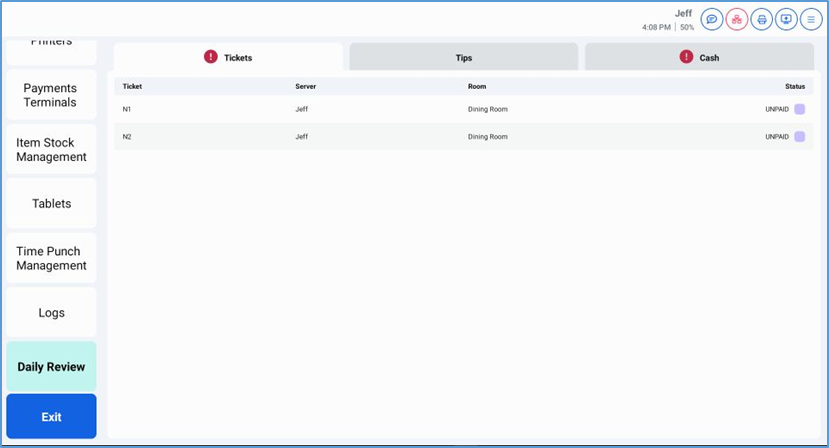
If you tap a ticket in the list, the POS will open the ticket, allowing you to review its details and take any necessary steps to close it (or advise its server on how to close it).
Tips Tab
The Tips tab displays a list of transactions that were closed without a tip amount. In this tab, you can edit each transaction and enter an appropriate tip.
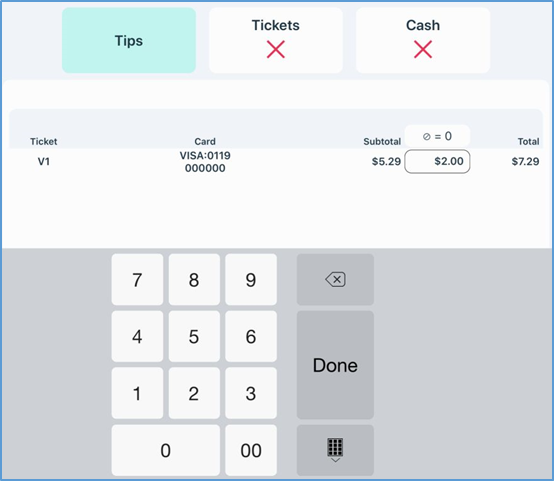
- To enter a tip amount to a ticket, tap the ticket’s Tip box in the list.The POS will display a keypad at the bottom of the screen.
- Enter a tip amount with the keypad, then tap Done.
- To access a ticket, tap its name in the list.To POS will open the ticket, allowing you to review its details and (if desired) enter a tip amount.
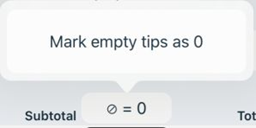
- To enter a tip value of “$0” in all transactions in the list, tap the Empty Tips button, then tap Mark empty tips as 0.
- When you have finished editing tip amount for all necessary tickets, tap Submit Tips.
The POS will save the changes you have entered.
If your credit card processing is set to Auth/Capture tips must be captured to batch a transaction out at the end of day. When you use this method, you’ll see a red X or a green checkmark indicator for this section. If you use Sale/Adjust or another processing method it allows you to view the screen, but does not show an indicator since it’s not required for end of day.
Cash Screen
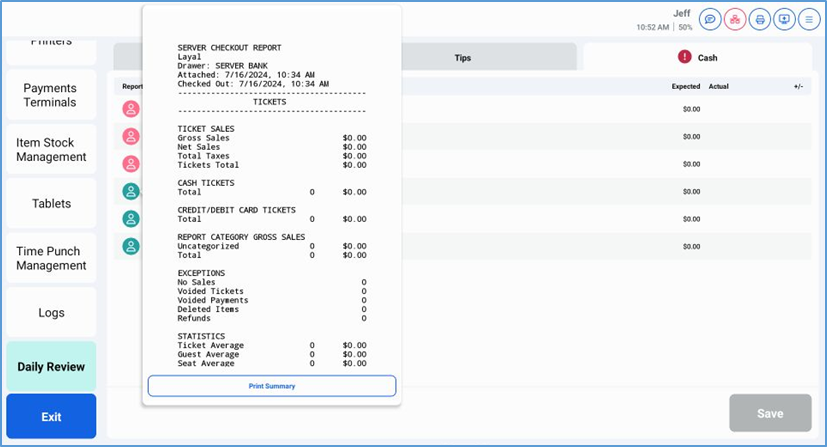
The Cash tab displays a screen listing all server banks and cash drawers currently open or checked in. For each bank in the list, the POS displays the name of its server, the date and time when the bank was opened or checked in, its expected amount, its actual amount, and the difference (if any).
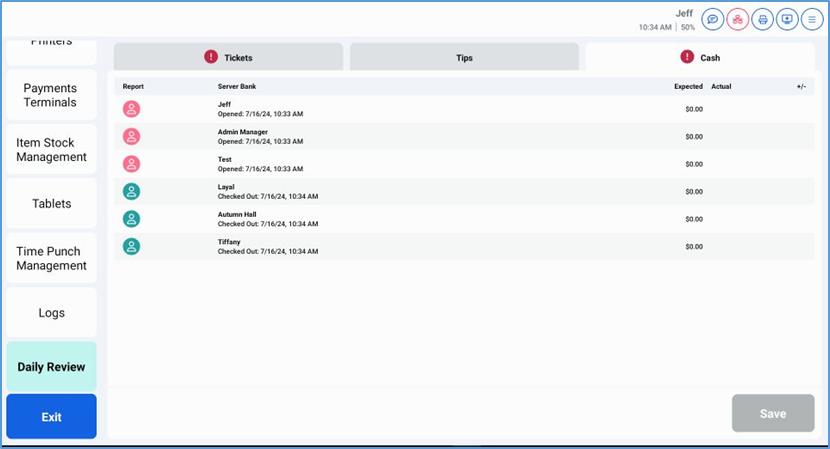
Each bank in the list includes a Report button. The POS displays it as green for banks that are completed (“Checked Out”) and red for banks that have not been checked in (“Opened”).
If you tap a server bank’s Report button, the POS displays the Server Checkout Report, with the details and subtotals of the checkout. If the checkout is already completed, you can print the report by tapping Print Summary (at the bottom of the report window).
If the checkout is incomplete, you can force the POS to close the checkout by tapping Force Server Checkout (at the bottom of the report window).
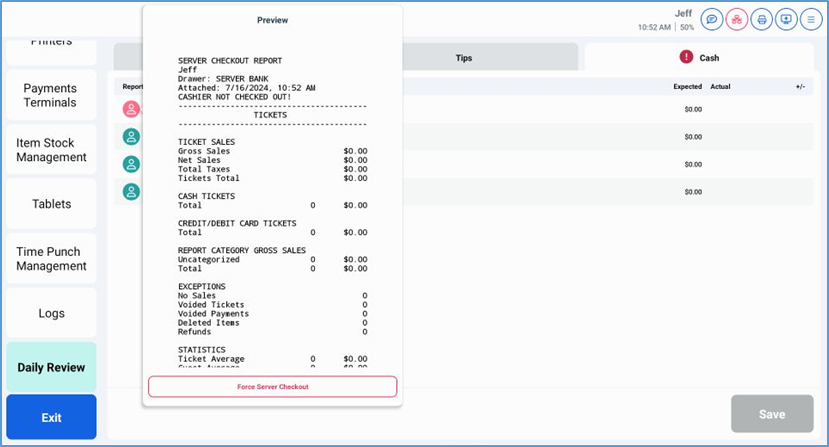
If all tickets are closed, the POS will allow you to force the checkout. If any tickets are still open, the POS will display an error.